

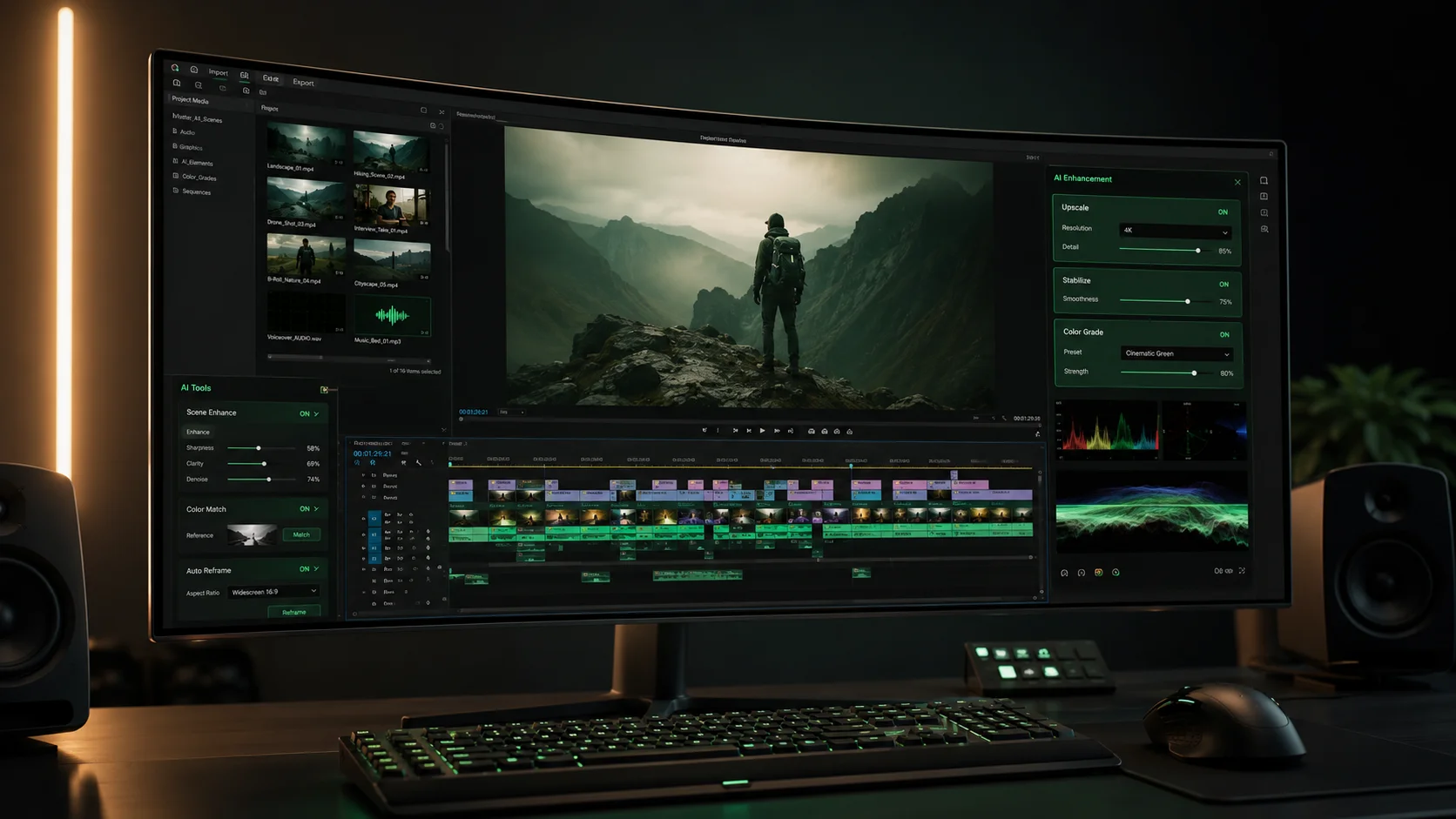
Not long ago, editing a video that looked professional required either years of practice or the budget to hire someone who had it. Adobe Premiere Pro has a learning curve steep enough to put off a lot of potential creators permanently. Final Cut Pro is better, but it's still software that assumes you know what a B-roll is and why color grading matters. For most people who just want to publish good content, the editing step was the wall they couldn't get over.
AI video editing has changed this calculus significantly. The tools available in 2026 aren't just "editing made easier" — some of them represent genuinely different paradigms for how video editing works. This isn't hype. I've put real hours into CapCut, Descript, and Runway, and what they can do now would have seemed like science fiction to someone editing in 2020. Let me walk you through what's actually useful, what's genuinely novel, and how to match the right tool to your specific situation.
What "AI video editing" actually means in 2026
The term "AI video editing" gets applied to a spectrum of features that vary wildly in how transformative they are. On the basic end, it means things like auto-captions (transcribe speech and add subtitles automatically), silence removal (detect and cut pauses between sentences), and noise reduction (clean up background hum from audio). These features save real time — silence removal alone can cut editing time in half for talking-head videos — but they're more automation than intelligence.
More impressive is scene detection and auto-cutting, where AI analyzes footage and suggests or makes cuts based on visual and audio cues. Tools like CapCut and Descript can look at a raw recording and produce a watchable rough cut with minimal human input. Not perfect, but genuinely useful as a starting point.
At the genuinely transformative end, you have tools like Runway that can alter, extend, or generate footage — changing backgrounds, removing objects, or creating visual elements that weren't in the original recording. This is less "editing" in the traditional sense and more "production," and it deserves its own discussion.
Understanding where on this spectrum a given tool sits helps you set correct expectations and choose the right tool for the right job.
CapCut AI: the free option that punches above its weight
CapCut started as a mobile app for TikTok creators and has grown into a genuinely capable desktop editor with a surprisingly strong AI feature set — most of which is free. This combination makes it unusual: you don't typically get this level of functionality at zero cost.
The auto-captions feature is among the best I've tested. It transcribes accurately across accents (I tested it with British, Australian, and American speakers), handles technical vocabulary reasonably well, and gives you editable subtitle tracks in a clean interface. The caption styles are also better than the competition — the "gradient highlight" option in particular looks good enough to use without modification on TikTok and Reels content.
The AI effects library is enormous and genuinely creative. There are motion effects, color grading presets, background removal, and voice effects, all applied with one click. The template library is particularly useful if you're creating short-form content — select a template, drop in your footage, and the AI trims and times your clips to the template's beat points. Content that would take 90 minutes to assemble from scratch takes 15 minutes this way.
The main limitation is that CapCut is built around short-form content. For YouTube videos over 10 minutes, it becomes unwieldy. The timeline interface doesn't scale well to longer projects. Use it for TikTok, Reels, Shorts, and any video under five minutes. For longer content, it's the wrong tool.
Descript: the one that treats video like a Word document
Descript is the editor that makes you realize the entire "timeline" paradigm of traditional video editing was always slightly wrong for spoken content. Here's the concept: Descript transcribes your video automatically, and then lets you edit the transcript like a text document. Delete a sentence from the transcript, and the corresponding video clip is deleted. Move a paragraph, and the video clip moves with it. Every edit you make to the text is reflected in the video.
The practical implications of this are significant. If you record yourself speaking for 20 minutes and want to trim it to 8 minutes, you don't drag clips around a timeline. You read through the transcript, delete the sections you don't want, and the video is cut. This is dramatically faster for interview-style content, podcasts with video, talking-head YouTube videos, and any format where the spoken word drives the structure.
Descript's "Underlord" AI suite adds on top of this: it can remove filler words ("um," "uh," "like") with one click, remove background noise, enhance audio quality, and even use AI voice cloning to fix mispronounced words after recording — instead of re-recording, you type the correct word and the AI generates it in your voice. That last feature is extraordinary once you actually use it.
The free tier is limited to one hour of transcription per month, which isn't much. The Creator plan at $15/month gives you 10 hours, which covers most users. For heavy production, the Pro plan at $30/month removes limits. Descript is not the right tool for effects-heavy content or short-form creation — it's squarely aimed at creators whose primary raw material is spoken video.
Runway Gen-3: for when you need to generate or manipulate footage
Runway occupies a different category than CapCut or Descript. It's less a video editor and more a video production AI — though the line between those categories is genuinely blurring. The flagship capability in Gen-3 is text-to-video generation: describe a shot in text, and Runway generates a short video clip. "A drone shot of a coastal city at sunset, cinematic, golden hour lighting" produces a 5–10 second clip that looks surprisingly convincing.
For content creators, the practical use cases are specific but valuable. Need a cinematic establishing shot you didn't film? Generate it. Need to extend a clip that ends too soon? Runway's video extension adds plausible continuation. Need to remove a distracting background element or change a background entirely? Runway handles both. These aren't features you'd use on every video, but when you need them, they solve problems that previously required either expensive reshoots or accepting a compromise.
The pricing reflects its positioning as a pro tool: the Standard plan starts at $15/month for 625 credits. Credits get consumed quickly when generating video — a five-second clip costs around 50 credits — so budget accordingly. Free accounts get 125 one-time credits to experiment with. Runway is not where you start, but it's worth knowing it exists for the problems it uniquely solves.
Adobe Premiere Pro AI features vs the dedicated AI editors
Adobe added substantial AI features to Premiere Pro under the "AI Editing" banner, and they're genuinely good — but they exist in a different context than the dedicated AI tools. The Auto Reframe feature intelligently reformats landscape video for vertical formats (no more manually repositioning subjects for Reels). Speech to Text is among the most accurate in any software. The Generative Extend feature can add frames to extend a clip to hit a precise duration — useful when you're one second short for a music cut.
Here's the honest comparison: Adobe's AI features are excellent, but they exist inside a tool that costs $55/month and has a steep learning curve. If you're already a Premiere user, these features are valuable additions. If you're starting from scratch, learning Premiere to access AI features you could get from CapCut (free) or Descript ($15/month) makes no financial or practical sense.
The exception is if you need full professional-grade control alongside AI assistance — complex color grading, multi-camera editing, audio mixing, effects compositing. At that level of production, Premiere's AI features are additive to a workflow you'd already need. For most creators reading this, the dedicated AI editors are more practical and significantly cheaper.
Which AI video editor for which creator type
Let me make this concrete. Here's how I'd match the tools to real creator situations:
If you're making TikTok, Reels, or YouTube Shorts content — under 3 minutes, mobile-first, heavy on effects and music — CapCut AI is your primary tool. It's free, it's fast, and it was designed for exactly this format. You can do 90% of what you need without spending a dollar.
If you're making talking-head YouTube videos, interviews, podcasts with video, or any long-form content where you're narrating — Descript is the right call. The transcript-editing workflow saves hours per video once you're comfortable with it. Start with the free tier to validate the workflow, then move to Creator at $15/month.
If you're making business content — product demos, explainer videos, company announcements, training materials — Invideo AI or Pictory are worth evaluating alongside Descript. They're better at assembling stock-footage-heavy content from scripts, which is often the format for business video.
If you're doing anything that requires generating or significantly manipulating footage — Runway is in a class of its own and worth the cost for those specific use cases. Don't pay for Runway if you're just doing basic editing; it's specialized and priced accordingly.
And if you're already a professional video editor who wants AI acceleration without leaving the tool you know — invest time in Premiere Pro's AI features. They're genuinely good, and the rest of the software's capabilities don't disappear.
The honest conclusion: there's never been a better time to start making video content without a background in editing. The gap between "person with a camera and a story to tell" and "published, watchable video" has never been smaller. Pick the tool that matches your format, commit to it for a few weeks, and you'll be surprised how quickly the technical friction disappears.